

Hoe u een Kotlin-project correct configureert in IntelliJ IDEA?
Mogelijk moet u uw Kotlin-project configureren in IntelliJ IDEA, for example for a project that you have imported from Github. Without the correct configuration the project will not compile/run or you may get error messages such as ‘AppKt not found in module’ or your main method cannot be found.
The following steps will configure your GitHub Kotlin project
- Configure Kotlin in your project
- Tools -> Kotlin -> Configure Kotlin in Project

- If you have more than one module choose all modules otherwise Single module will be fine and choose Use library from plugin
- Press OK

- Tools -> Kotlin -> Configure Kotlin in Project
- Configure the project settings
- Create a directory for the Project compiler output
- Right click the project root in the Project Tool Window
- Choose New -> Om een te kunnen beheren
- Enter new directory name: out
- Press OK
- Right click the new out directory in the Project Tool Window and choose Copy Path

- Right click the project root in the Project Tool Window
- Choose File -> Project Structure…
- In Project compiler output paste in the out directory Path which was copied in the previous step
- Select the JDK 1.8 in Project SDK
- Select SDK default in Project language level
Notitie: if you get any Github prompts click cancel

- Select Modules
- Right click src directory and set as Sources
- Klik op OK
Notitie: Cancel or choose No for any Github prompts
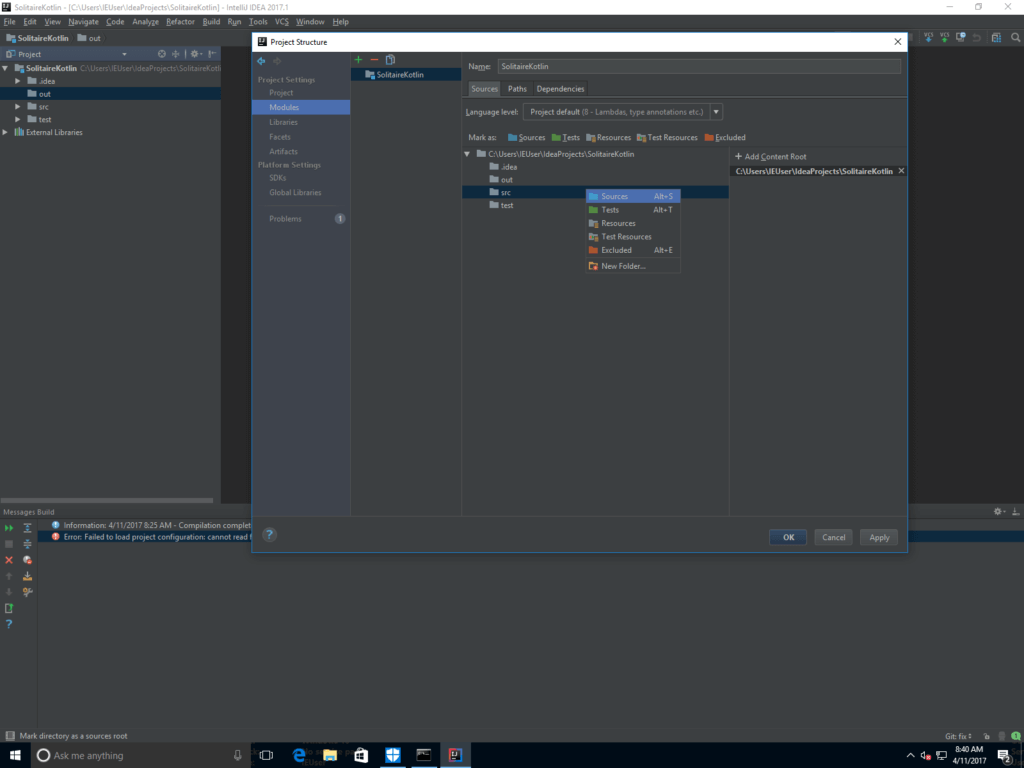
- Create a directory for the Project compiler output
- Configure Run and Debug for Kotlin
- Open the App.kt file or the file which contains the main application entry point method
Notitie: Choose No for any Github prompts - Click the small Kotlin icon to the left of the method
- Choose Run ‘AppKt’
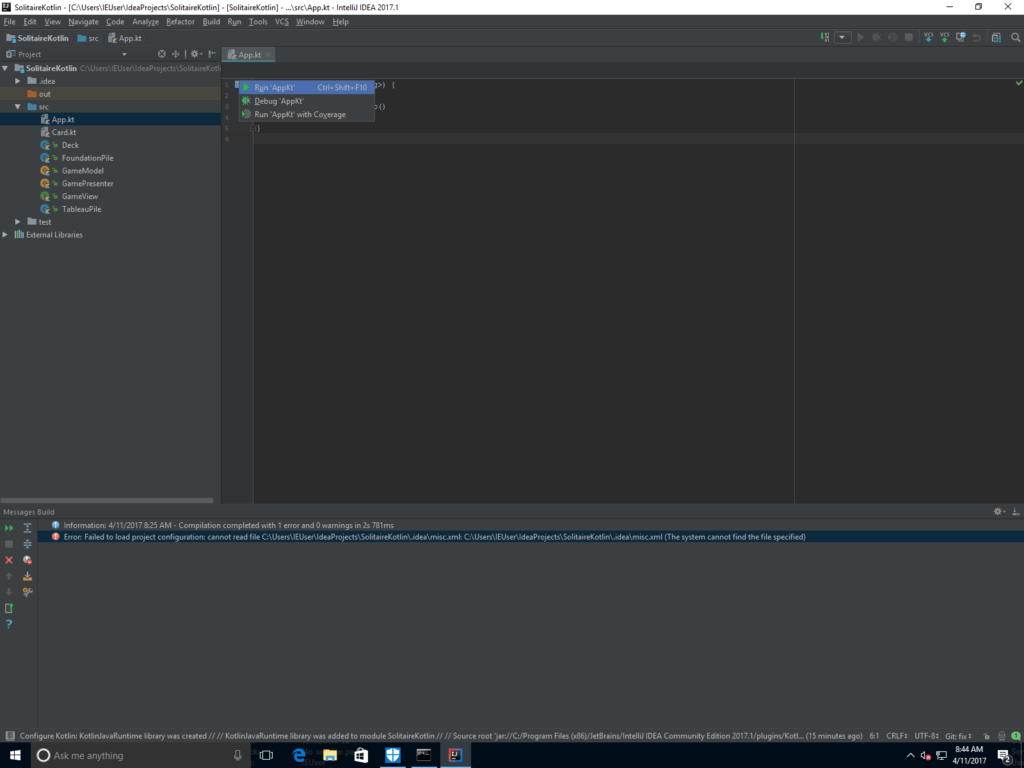
- Choose Run ‘AppKt’
- Open the App.kt file or the file which contains the main application entry point method
Your project configuration is now complete and your Kotlin app should compile and run with no problems.
