

Hvordan at oprette Cmder at køre Windows PowerShell på Cmder Idrifttagning med din brugerprofil som den nuværende arbejdsmappe i Windows 10
De følgende trin vil gøre det muligt PowerShell på Cmder lancering, with the path set to your %userprofile%. If you have used a context menu, dette vil ikke forstyrre genvejsmenuen funktionalitet.
- Ensure PowerShell is the default task in Cmder.
menu -> settings -> startup
Ensure the specified task is Powershell and then Save settings.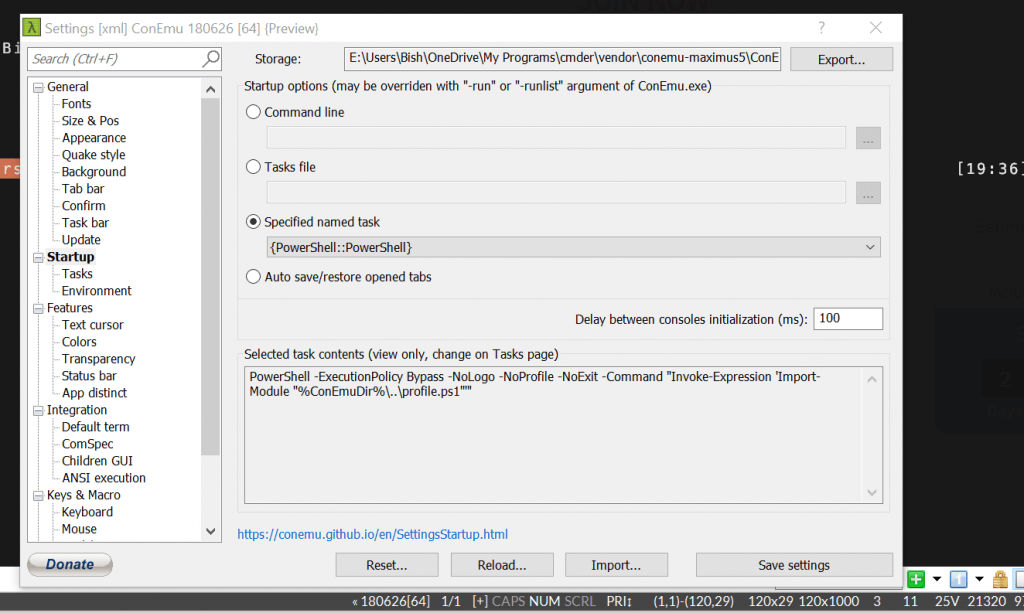
- Navigate to your Cmder installation location and right click cmder.exe and click copy.

- Go to your desktop, then right click, and then choose paste shortcut.
- Right click on the newly created shortcut and choose Properties.
- Add the following to the end of the Target property after the double quote
Cmder.exe" /start "%userprofile%"
Klik på OK
Double click the Cmder shortcut and PowerShell will launch with your user profile as the present working directory.
You can also pin the short cut to the Start menu by right clicking it, and choosing Pin to Start.
