

Sådan opsættes Docker Quickstart Terminal i Cmder?
Det følgende viser, hvordan man kan opsætte Docker Quickstart Terminal i Cmder.
- Enter the Setup tasks screen
Keyboard shortcut
Win + alt + TVia menu
+ knap -> Setup opgaver….
- Expand Startup and Choose Tasks
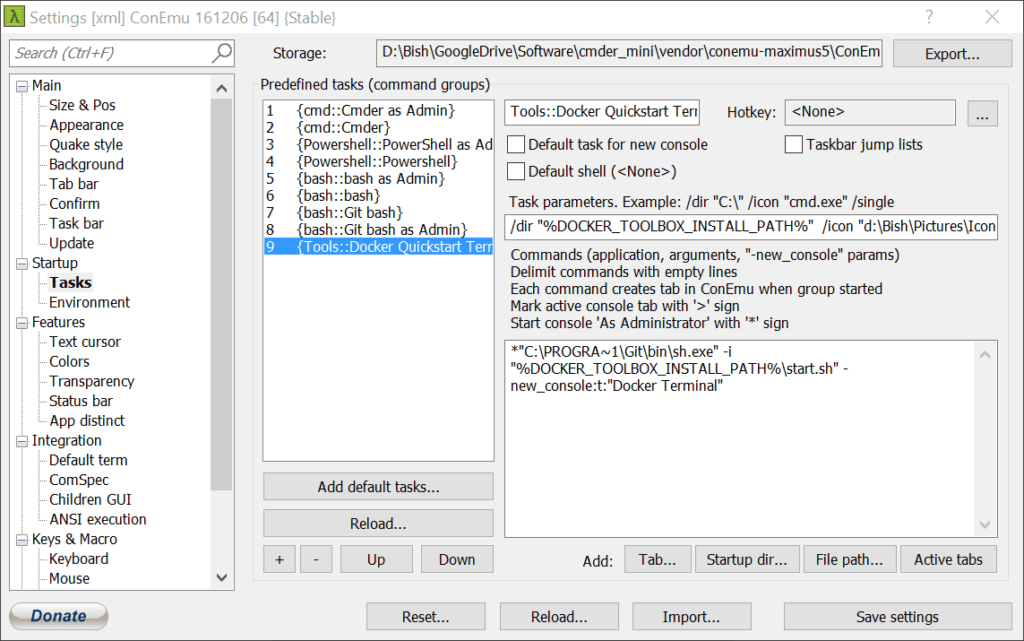
- Add a new Predefined task
Keyboard shortcut
alt + Shift + +via menuen
+ button - Name the task by replacing Group{number} with…
Tools::Docker Quickstart Terminal
The first part defines the task category and the second part is the task name
- Define the task parameters.
/du "%DOCKER_TOOLBOX_INSTALL_PATH%" /ikon "d:\User\Pictures\Icons\if_github_334641.ico"
Here a custom icon is used, ensure that your path and .ico file is specified.
Hjælp
/du – sets the working directory, where new processes will be started
/ikon – icon that is displayed in the tabs - Add the commands
*"C:\PROGRA~1\Git\bin\sh.exe" -jeg "%DOCKER_TOOLBOX_INSTALL_PATH%\start.sh" -new_console:t:"Docker Terminal"
Docker Client on Windows should be run as elevated as we have set up here. Ensure that the path to the Git binary files matches your set-up.
Hjælp
* – run as elevated
-jeg – program arguments
-new_console:t – tab name
-new_console:d – Vejviser
Your final set-up should look like the following

