

An LEECO LeTV 1 Pro USA Leagan X800 Malware Removal, Aisghabháil TWRP, Cirt agus Shocrú Fadhbanna Lúb Tosaithe
An LeTV An LEECO 1 Is Pro fón iontach a thagann ar phraghas an-íseal. Some retailers are selling the phone for approx. £ 150. Mar sin féin, a dhéanann an fón teacht le cúpla fadhbanna.
The phone comes bundled with an old YouTube app which refuses to update to the latest version. The phone has malware where apps are installed in the background and ads are served in the Chrome browser.
At the time of writing there are no updated official ROMs. There are custom ROMs which should fix the problems above but there is no guarantee. Mar sin, tá sé níos éasca a shocrú na fadhbanna thuas laistigh den ROM suiteáilte.
Nuashonraigh 18.7.16
Tráth scríofa na tuarascála nach raibh aon ROM oifigiúil ar fáil. Anois tá ROM oifigiúil a bheith scaoilte. Is féidir é a fháil i an post seo. Is Shuiteáil an ROM oifigiúil an bealach is éasca a shocrú ar an malware agus app fadhbanna leis an bhfón.
The TrustGo App from the Google Play store pointed out that the Ant Keyboard bundled app contained the malware. The YouTube problem can be fixed by uninstalling the bundled YouTube and installing the latest YouTube from the Google Play Store.
Bhí an fón a bheith fréamhaithe a bhaint as an YouTube agus an app malware Méarchláir Seangán.
Beidh na treoracha seo a leanas root an Le LeTV 1 Pro USA version only. Mar sin féin, féidir cirt bríce do ghuthán, so if you do go ahead it will be your responsiblity. Rooting also invalidates the warranty of the phone. You will also be able to unroot your phone at a later date and reinstate your warranty.
Glacann an méid seo a leanas go bhfuil tú ag baint úsáide as Windows 10.
Cirt an Le LeTV 1 Pro USA Leagan
- Suiteáil TWRP
- TWRP will allow to root the phone. First it needs to be installed.
- D'fhonn a shuiteáil TWRP, is gá duit a cheangal ar an bhfón leis an ríomhaire
- Ligeann ullmhú an ríomhaire sula nascadh muid é
- Suiteáil Java JDK 8 ag baint úsáide as chocolatey
- Oscail riarthóir ordú go pras
- IE cineál sa chuardach, cliceáil ar dheis Ordú Pras agus roghnaigh Rith mar riarthóir.
- Cóipeáil agus greamaigh an cód seo a leanas isteach an fhuinneog ordú go pras riaracháin a shuiteáil chocolately
@powershell -NoProfile -ExecutionPolicy Seachbhóthar -Command "IEX ((net.webclient nua-réad).DownloadString('https://chocolatey.org/install.ps1'))" && PATH SET =% PATH%;%ALLUSERSPROFILE% chocolatey bin
- Suiteáil agus a chumrú JDK 8 ag pasting an cód seo a leanas isteach an fhuinneog ordú go pras riaracháin.
choco install jdk8
- Íosluchtaigh, shuiteáil agus a chumrú android stiúideo baint úsáide as na mainneachtainí san thus
- Íosluchtaigh Android Stiúideo
- Seoladh thus agus glacadh leis na mainneachtainí
- Sa an scáileán deiridh a roghnú lanuch Android Stiúideo agus ansin chríochnú
- Roghnaigh an dropdown chumrú agus ansin roghnaigh bainisteoir SDK

- Sa an bainisteoir SDK, seiceáil an Google USB Tiománaí ón SDK Uirlisí cluaisín agus roghnaigh OK

- Close the administrative command prompt and then open a new administrative command prompt and type adb. You should see the adb command returning help. This means that adb driver is installed and ready to go.
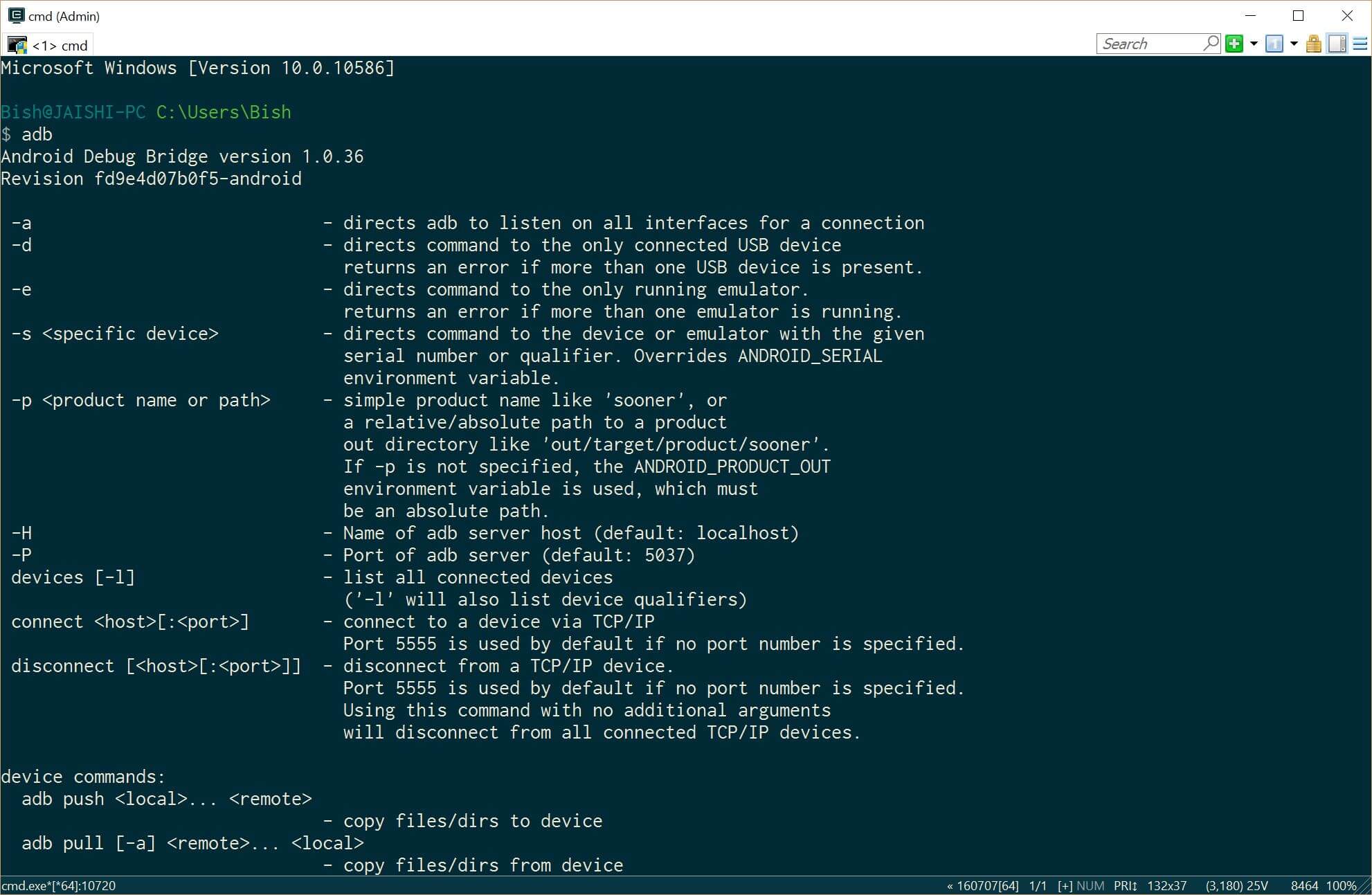
- Íoslódáil an leagan is déanaí de TWRP ar an ríomhaire ag baint úsáide as nasc
- Athainmnigh an comhad a d'íosluchtaigh a recovery.img
- Oscail riarthóir ordú go pras
- Suiteáil Java JDK 8 ag baint úsáide as chocolatey
- Now it is time to prepare the phone before we connect it to our already prepared PC. If your phone does not boot into android then you can skip the whole of this #4 alt agus bogadh ar aghaidh go dtí #5 (TWRP) section below.
- Go to settings and then about on your phone. Unlock developer options by touching the build number several times.
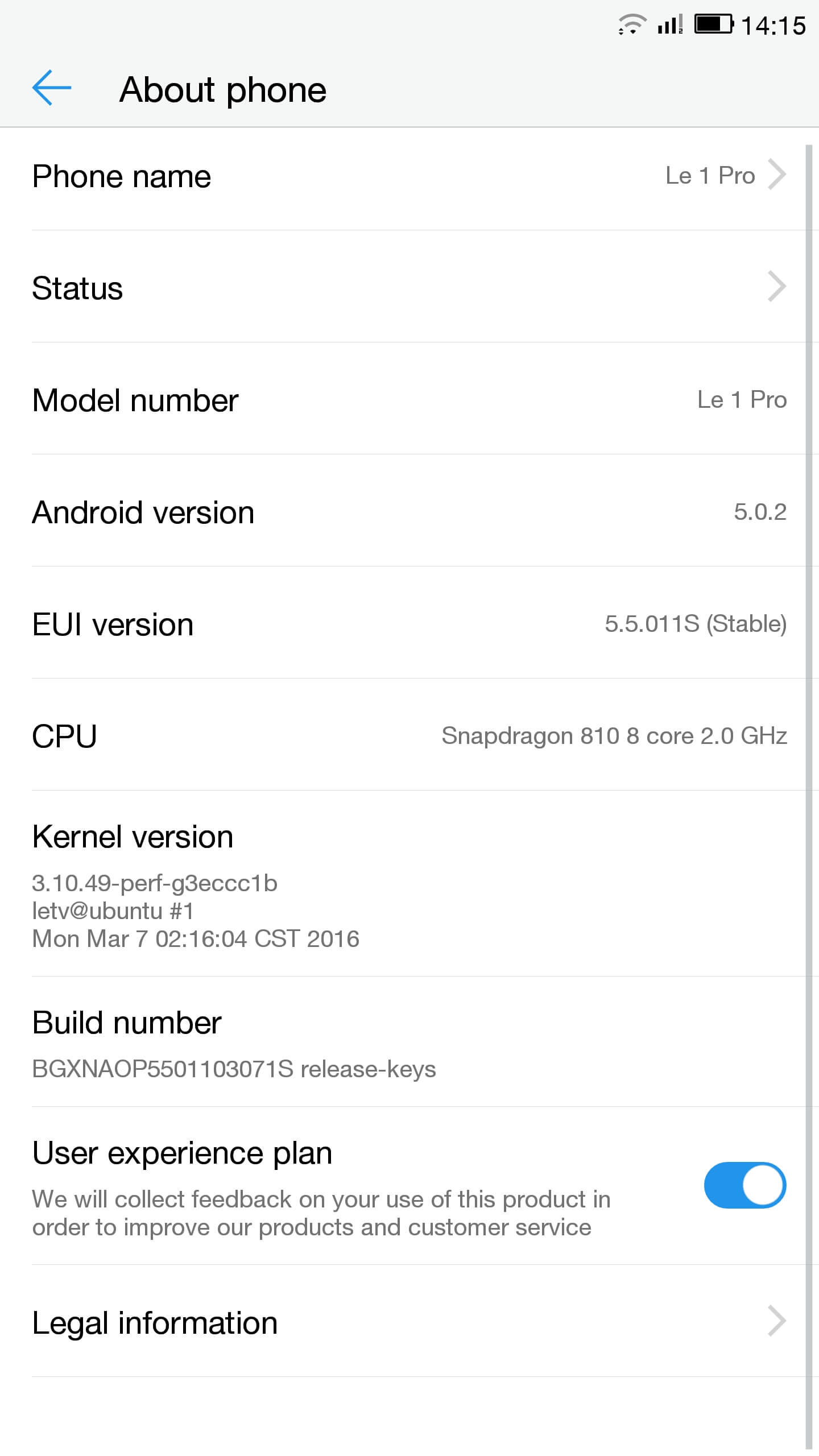
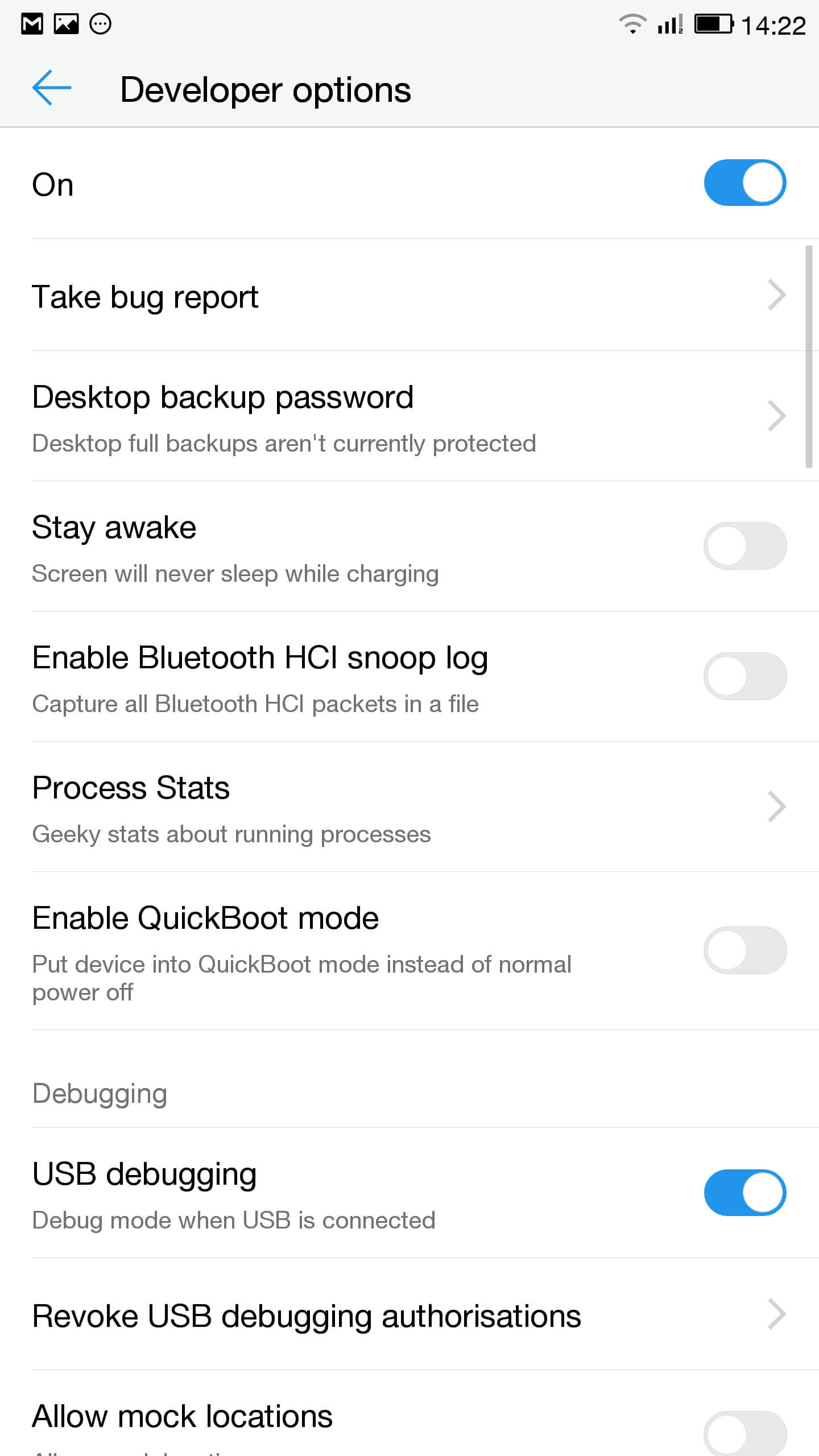
- Téigh go dtí suíomhanna, Roghanna forbróir agus ar chumas USB debugging
- Sa bharra fhógra cliceáil ar dteagmháil do roghanna USB agus a chinntiú go MTP atá roghnaithe
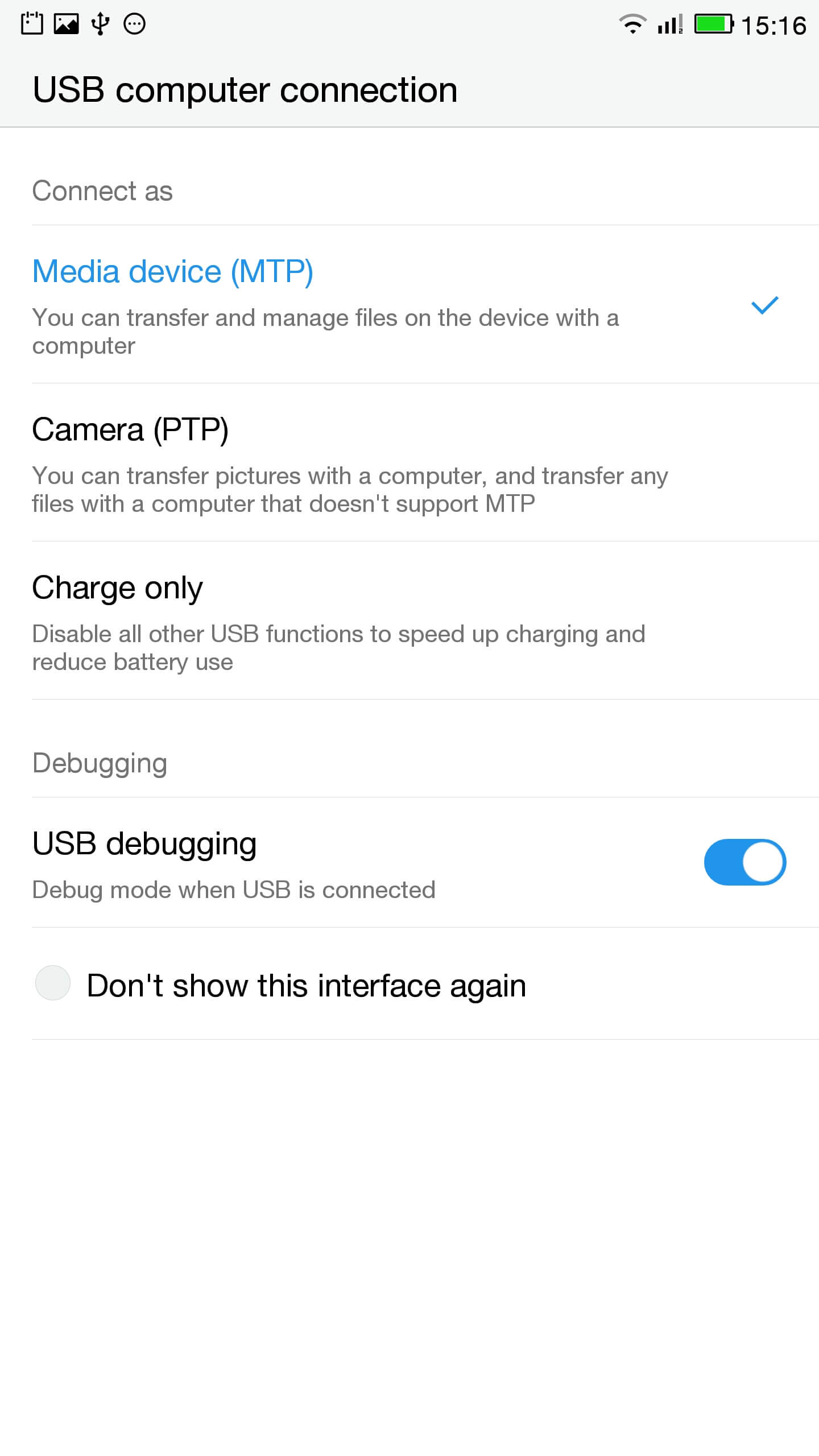
- Ceangail an teileafón leis an ríomhaire
- I pras riaracháin seiceáil an fón ceangailte i gceart ag clóscríobh
feistí adb
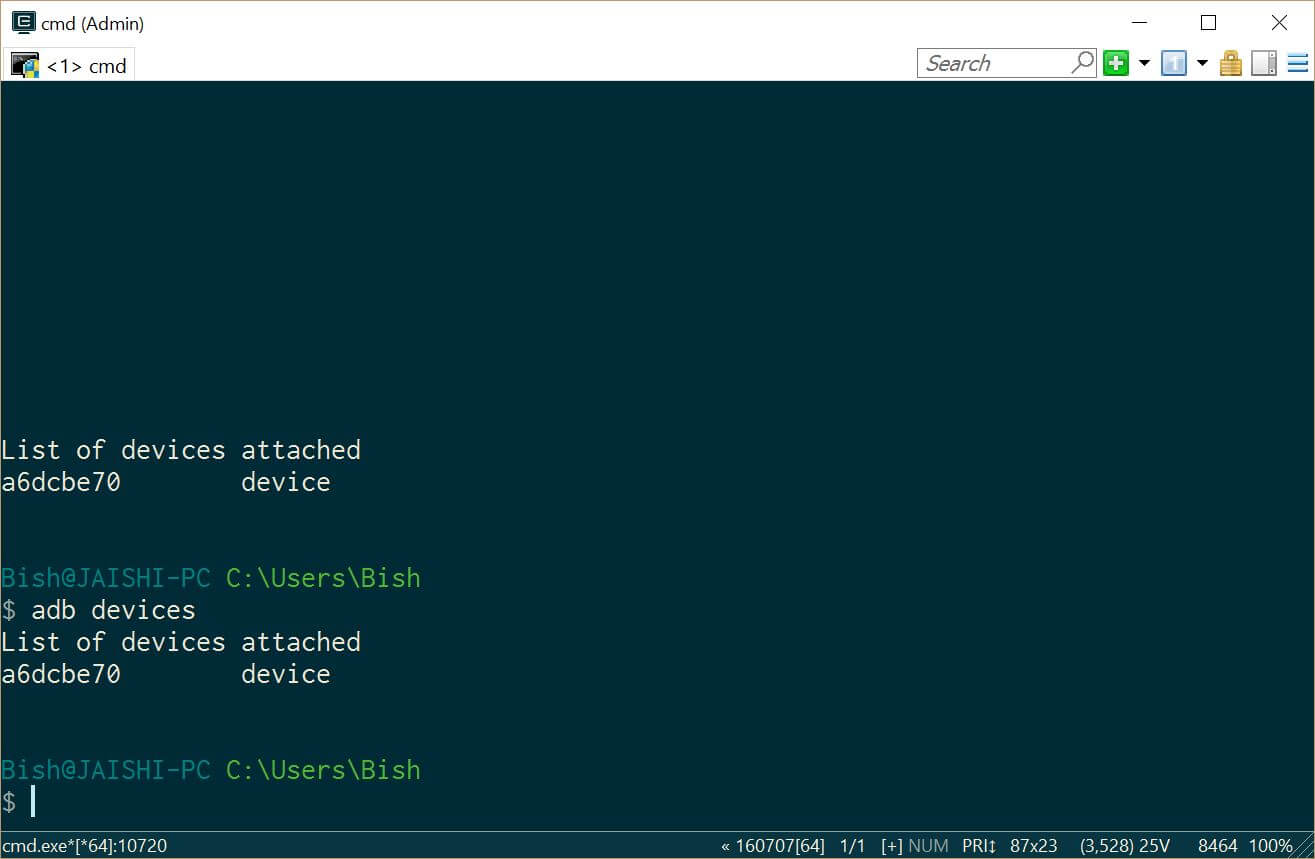
Ba chóir duit a fheiceáil a bheidh táirge faoina feistí adb - Íosluchtaigh SuperSU agus úsáid an bainisteoir comhad a chur ar an eolaire fhréamh an teileafón
- Go to settings and then about on your phone. Unlock developer options by touching the build number several times.
- Lets flash TWRP into the phone. You should not lose any data, ach má tá tú sonraí ar an teileafón ba chóir duit a dhéanamh cúltaca ar eagla na heagla.
- Ní mór dúinn a tosaithe isteach fastboot. Ar an ríomhaire, oscailt ordú go pras riaracháin agus cineál
bootloader Atosaigh adb
Más rud é nach do gléas tosaithe i android, is féidir leat dul isteach i fastboot trí chasadh as do ghuthán, shealbhú an eochair toirt síos agus ansin brúigh an cnaipe chumhacht.
- Once in fastboot you should see a small picture of a penguin in the middle of the screen. To check that the phone is connected, sa chineál ordaithe riaracháin pras
feistí fastboot
Ba chóir duit a fheiceáil do gléas atá liostaithe
- Sa an ordú riaracháin pras a chinntiú go bhfuil tú ar an liosta de na comhaid recovery.img agus cineál an méid seo a leanas
recovery.img ghnóthú flash fastboot
- Nuair atá an téarnamh flashed chineál seo a leanas agus coinnigh an eochair toirt suas a atosú i ghnóthú
Atosaigh fastboot
- You should now be in TWRP. In TWRP there may be an option advanced or settings to install SuperSU. If the option is not there use install to install SuperSU (íoslódáil níos luaithe) ó fhréamh na stórála teileafón.
- Nuair a suiteáilte is féidir leat Atosaigh android isteach agus na treoracha sa app SuperSU.
- Nuair atá an tsuiteáil íoslódáil críochnaithe an RootChecker app as an siopa Súgartha Google agus seiceáil má bhfuil an gléas fréamhaithe.
- Ní mór dúinn a tosaithe isteach fastboot. Ar an ríomhaire, oscailt ordú go pras riaracháin agus cineál
- Socrú an fadhbanna le YouTube agus a bhaint de na malware
- Suiteáil Easy Uninstaller, Stubborn Trojan Killer agus Malwarebytes Anti-Víreas ón Súgartha Store Google.
- Uninstall YouTube and Ant Keyboard. I uninstalled Cantonese Keyboard Language and Mii Browser as well as I was not using these. If you start getting errors, ach Atosaigh do gléas.
- Íoslódáil agus a shuiteáil ar an YouTube app as an Play Google Store.
- Rith an Stubborn Trojan Killer agus a bhaint aon trojans gheofar.
- Run the Malwarebytes Anti-Virus and remove any found viruses. Run the privacy scanner and follow the recommendations.
Nuair a bheidh tú críochnaithe go sásúil na céimeanna thuas ansin ba chóir do gléas a bheith saor malware agus go hiomlán inúsáidte.
Fabhtcheartú
Is é mo gléas bricked
Your device may not be bricked. It may just look bricked as the screen may not turn on and it will not charge. If this is the case leave your device for at least a week without charging it at all so that all the power is drained out. After a week connect it to the charger and see if the LED light indicator shows. If the LED does come on then allow the phone to charge for about 90 minutes and then hold down volume and power button. The penguin icon should be on the screen. If you see the penguin then you can continue from E.ii from the instructions above.
Is é mo gléas i bootloop
Más é seo an cás ansin a shealbhú ach an cnaipe chumhacht ar feadh thart 15 seconds until the device is off. Then hold down volume and power button. The penguin icon should be on the screen. If you see the penguin then you can continue from E.ii from the instructions above.
Ní Android obair
Seans go mbeidh ort a ath-flash an ROM. The original USA version of the ROM can be found anseo.
Níl a fhios agam má tá mé an Stáit Aontaithe Mheiriceá leagan
Check the box of the device. If it has the web address of the USA website then it should be USA version, cé nach féidir liom a ráthú é.

Salut, j’ai suivi toutes les étapes à la lettre, cependant quand je tape en mode admin dans la console “fastboot device” aucun résultat…. c’est vide… que faire?
Switch off the phone. Hold the down volume key and then press power on button. You should see a penguin on the screen (this is fastboot mode). Now connect the phone to the PC. In an administrator command prompt type ‘fastboot devices’.
J’ai effectué cette manœuvre, vu le pinguin aussi au démarrage de l’appareil,
mais lorsque je passe en mode admin sur la console : je tape “adb device” mon appareil apparait dans la liste.
mais quand je tape “fastboot devices =”le néant complet ” il n’apparait pas, la est mon problème 🙁
The phone should remain in fastboot (penguin icon will show constantly on the screen) whilst you type the fastboot devices command. If the penguin picture goes off the screen then it means that your phone has rebooted and hence goes into android debugging.
If I try to turn it on it beeps and the notification light blinks red and purple. Any ideas?