

តើធ្វើដូចម្តេចដើម្បីរៀបចំ Cmder ប្រព័ន្ធប្រតិបត្តិការ Windows PowerShell ដើម្បីរត់ចាប់ផ្តើមជាមួយនឹងការនៅ Cmder ទម្រង់អ្នកប្រើរបស់អ្នកជាថតការងារដែលបានមានវត្តមាននៅក្នុង Windows 10
នេះជាជំហានដូចខាងក្រោមនឹងអនុញ្ញាតឱ្យនៅបើកដំណើរការ Cmder PowerShell, with the path set to your %userprofile%. If you have used a context menu, នេះនឹងមិនជ្រៀតជ្រែកជាមួយនឹងមុខងារម៉ឺនុយបរិបទរបស់.
- Ensure PowerShell is the default task in Cmder.
menu -> settings -> startup
Ensure the specified task is Powershell and then Save settings.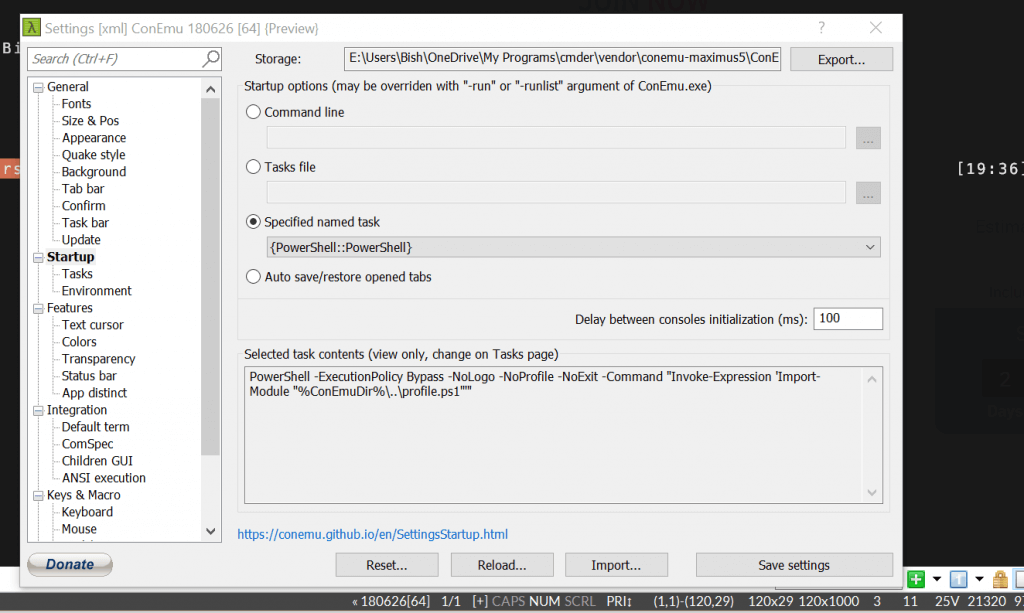
- Navigate to your Cmder installation location and right click cmder.exe and click copy.

- Go to your desktop, then right click, and then choose paste shortcut.
- Right click on the newly created shortcut and choose Properties.
- Add the following to the end of the Target property after the double quote
Cmder.exe" /start "%userprofile%"
ចុចយល់ព្រម
Double click the Cmder shortcut and PowerShell will launch with your user profile as the present working directory.
You can also pin the short cut to the Start menu by right clicking it, and choosing Pin to Start.
